
Operating VR169
Operation videos
- VR169 quick start, for 1.2.0
- VR169 operation guide, for 1.2.0 \* currently in production
Part names
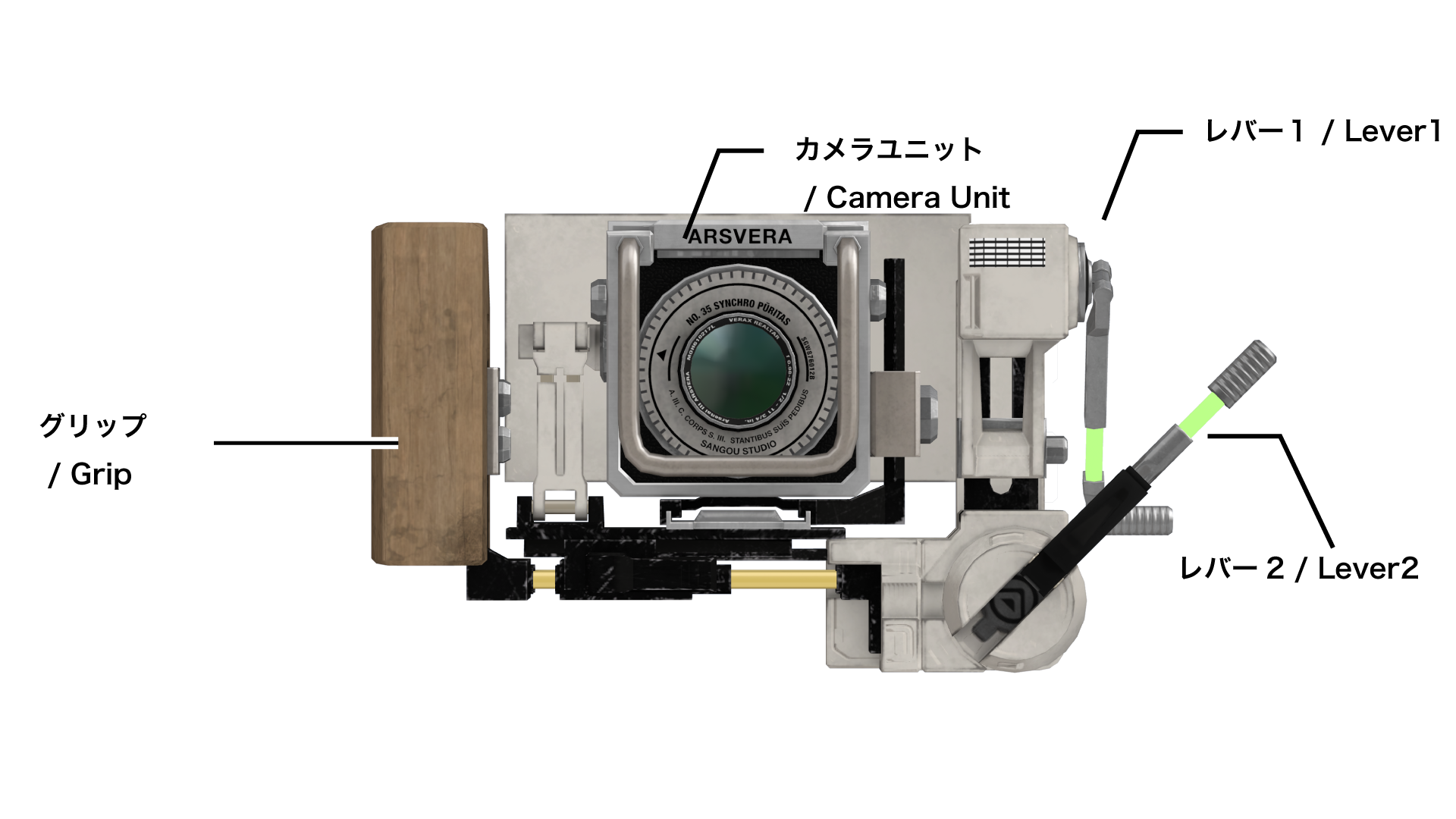
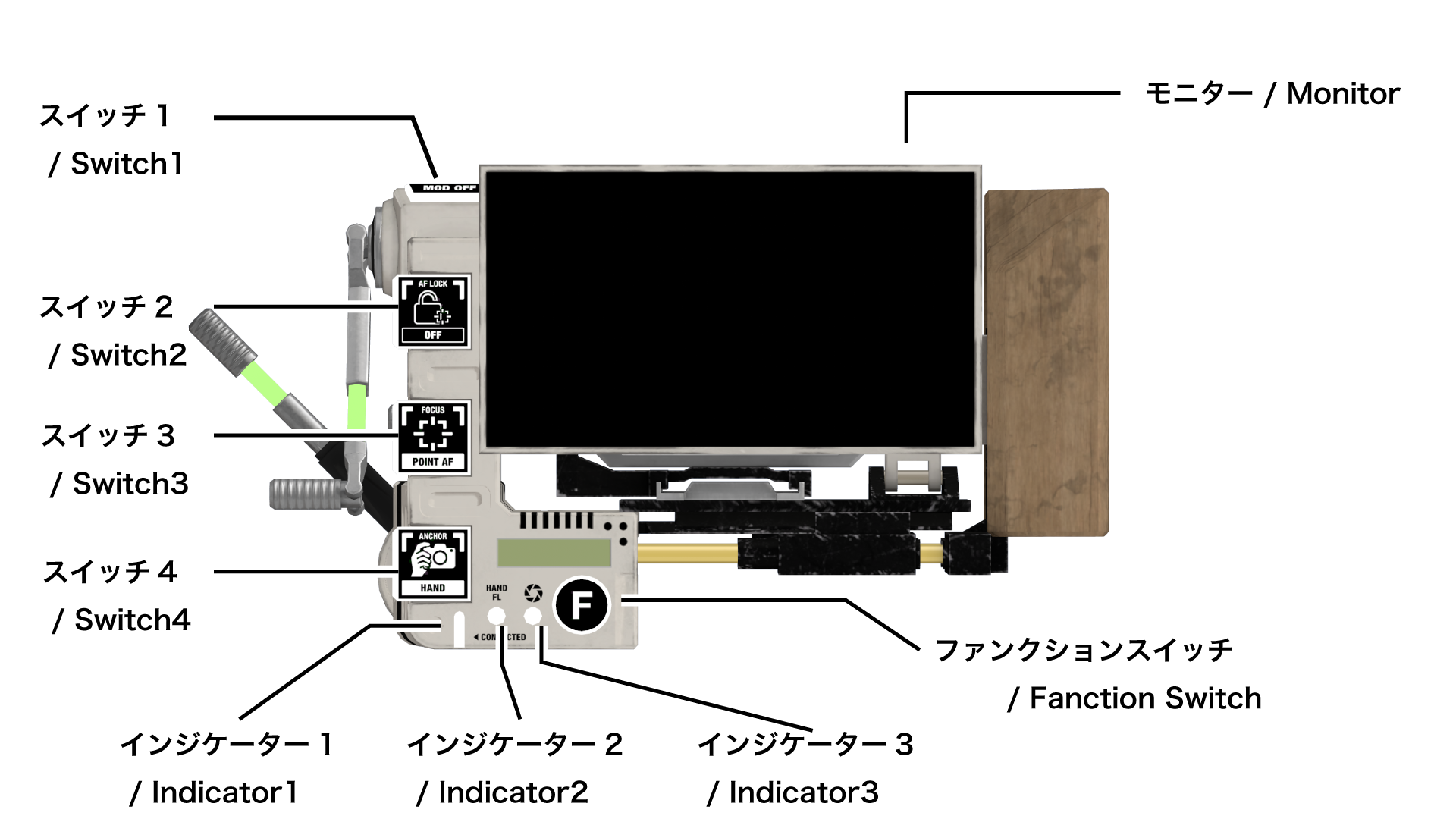
Starting and stopping
Starting
Linked start
- Open the standard VRChat camera.
- VR169 starts automatically.
VR169 Companion must be running.
If you do not want the linked start, configure it from the VR169 Ex menu.
The linked start does not happen for about two seconds from the moment VR169 and VR169 Companion connect. To turn the linked start off, use the VR169 Ex menu (Settings ➜ VR169 Companion ➜ AutoActive). Once you switch it off, the setting is kept.
Starting with a gesture and avatar movement
- Look at the back of the wrist of your camera hand, near the centre of your view.
- Make the camera hand's gesture Fist.
- Turn your wrist over quickly and look at the palm side of the wrist.
- Turn your wrist over quickly again and look at the back of the wrist once more.
- Snap your hand as if beckoning.
Use the same steps to bring VR169 back from a hidden state.
Starting from the ExMenu
- Start VirtualLens2 from the VRChat Expressions Menu.
Stopping
Linked stop
- Close the standard VRChat camera.
- VR169 stops automatically.
VR169 Companion must be running.
If you do not want the linked stop, configure it from the VR169 Ex menu.
The linked stop does not happen for about two seconds from the moment VR169 and VR169 Companion connect. To turn it off, use the VR169 Ex menu (Settings ➜ VR169 Companion ➜ AutoActive). Once you switch it off, the setting is kept.
Stopping with a gesture and avatar movement
While VR169 is hidden, this operation is disabled, to prevent an accidental shutdown from an unintended movement. Show it again first if you want to stop it.
- Look at the back of the wrist of your camera hand, near the centre of your view.
- Make the camera hand's gesture Fist.
- Turn your wrist over quickly and look at the palm side of the wrist.
- Turn your wrist over quickly again and look at the back of the wrist once more.
Stopping from the menu
- Close VirtualLens2 from the VRChat Expressions Menu.
Checking the connection to VR169 Companion
When VR169 and VR169 Companion are connected correctly, indicator 1 lights up.
Levers: operation and functions
This section covers the two virtual levers on the VR169 body. Depending on the settings they handle "zoom" and "aperture", and they also take intuitive analogue input such as manual focus.
Deploying and stowing
How the levers are operated.
Deploying and stowing
- When the interface deploys automatically: bring VR169 into view and move your free hand near the levers, and they deploy automatically. Move it out of view and let go, and they stow.
- When automatic deployment is off: use the ExMenu and switch manual deployment to "Deploy" or "Stow".
Basic functions
How to operate them
- Grab and move: put your free hand over the lever you want and move your hand while grabbing. Let go to release the grab.
The character and default setting of each lever
- Lever 1: the default target is "zoom". From the user's viewpoint this is a straight up-and-down movement, so the direction follows the up-and-down operation of typical equipment such as ENG and powered zoom controllers.
- Lever 2: the default target is "aperture". From the user's viewpoint this is a rotary movement, so the direction is designed after the controls of real photographic equipment and cinema lenses.
Normal state
Zoom and aperture can be operated with their respective levers.
The assignment can be swapped in the ExMenu settings.
- Normal lever choice "Standard"
- Lever 1: zoom
- Raise the lever: longer focal length (subject larger, narrower field)
- Lower the lever: shorter focal length (subject smaller, wider field)
- Lever 2: aperture
- Raise the lever: close the aperture (less blur)
- Lower the lever: open the aperture (more blur)
- Lever 1: zoom
- Normal lever choice "Swapped"
- Lever 1: aperture
- Raise the lever: open the aperture (more blur)
- Lower the lever: close the aperture (less blur)
- Lever 2: zoom
- Raise the lever: shorter focal length (zoom out; subject smaller, wider field)
- Lower the lever: longer focal length (zoom in; subject larger, narrower field)
In focus mode "Manual"
The lever adjusts focus by hand (manual focus). By a switch operation, or in the settings, this lever can be changed back to its usual role of "zoom" or "aperture".
- MF lever choice: "Lever 1"
- Lever 1: manual focus
- Raise the lever: move the focus point further away
- Lower the lever: move the focus point closer
- Lever 2: same as in the normal state
- Lever 1: manual focus
- MF lever choice: "Lever 2"
- Lever 1: same as in the normal state
- Lever 2: manual focus
- Raise the lever: move the focus point closer
- Lower the lever: move the focus point further away
In camera placement mode "Selfie"
The lever adjusts the distance to the camera. By a switch operation, or in the settings, this lever can be changed back to its usual role of "zoom" or "aperture".
- Camera distance lever choice: "Lever 1"
- Lever 1
- Raise the lever: move the camera away from you
- Lower the lever: bring the camera closer to you
- Lever 2
- Same as in the normal state
- Lever 1
- Camera distance lever choice: "Lever 2"
- Lever 1
- Same as in the normal state
- Lever 2
- Raise the lever: bring the camera closer to you
- Lower the lever: move the camera away from you
- Lever 1
Extra functions
QuickCall
Pull the trigger while holding a lever, and the VirtualLens2 QuickCall you set beforehand is called. Lever 1 and lever 2 can each have a different QuickCall. Which QuickCall is assigned can be changed in the ExMenu settings.
[How to operate]
- With the lever grabbed, pull the trigger on your free hand to run the function.
The monitor: operation and functions
This section covers the monitor on the back of the VR169 body. It has a physically movable mechanism, to suit your shooting posture and changes of composition.
Tilt
You can tilt the monitor up and down. As well as holding the camera at eye height, this makes "waist-level shooting" comfortable — lowering the camera to chest or waist height and looking down at the monitor.
[How to operate]
- Grab near the bottom of the monitor and move it up and down to the angle you like.
[Note] The grab position is offset a little downwards, so that the focus point of point AF does not move needlessly.
Revolving
This rotates only the monitor and the camera sensor object, without turning the VR169 body or twisting your wrist. It switches the composition between "landscape (horizontal)" and "portrait (vertical)" instantly, while you stay in a comfortable posture.
[How to operate]
- With the monitor grabbed, pull the trigger on your free hand. When the function runs, the free hand releases the monitor automatically.
[Note]
Revolving is a mechanism found on real large-format and medium-format cameras: rather than moving the heavy camera body on its tripod, only the part holding the film or sensor rotates, and the composition changes. VR169 reproduces this smooth change of composition — routine for professionals — as a practical VR experience.
Switches: operation and functions
This section covers the virtual switches on VR169. Using the switches, you can operate the various functions of VirtualLens2 without opening the ExMenu.
Basic operation
How to press the various switches on the body.
Input in gesture mode
This is a safety mechanism: switching the gesture on your free hand lets you press a switch reliably while preventing accidental operation.
[How to operate]
- Bring the switch you want to press into view.
- Set your free hand to the "switch gesture" (default: Victory).
- Push your index finger into the switch, then release it.
- The switch is entered; once the function has run, release the gesture.
[Notes]
- The switch gesture can be changed in the settings.
- If you release the switch gesture without taking your index finger off the switch, the function does not run and the input is cancelled.
Input in direct mode (in development)
This form of operation drops the gesture safety mechanism. It is intended for use with hand tracking and similar, where gestures are disabled on the VRChat side.
Function
As well as their normal roles, switches 1 to 4 can each be switched to a different role by pressing the "function switch".
[How to operate]
- Press the function switch on the body, then press the switch you want.
- To clear the function state, either release the switch gesture or press the function switch again.
Focus
Changing the focus mode
Change the VirtualLens2 focus mode with the VR169 switches.
[How to operate]
- Press switch 3. The switches on the body change to the "focus mode selection state".
- Press the switch for the mode you want.
- Switch 1: Manual
- Switch 2: Point AF
- Switch 3: Selfie AF
- Switch 4: Face AF
- The chosen focus mode is applied, and the switches return to their normal roles automatically.
[How to cancel]
To return the switches to their normal state without choosing anything while in the focus mode selection state, do either of the following.
- Press the function switch.
- Release the switch input gesture.
Focus lock
Operate the VirtualLens2 focus lock from VR169. It fixes the focus position, preventing unintended defocus caused by the camera moving or by movement around you. This function works only when the focus mode is "Point AF" or "Face AF".
[How to operate]
- Press switch 2. It toggles between enabled and disabled.
[Note]
You can also apply the focus lock with a camera-hand gesture. See "The camera hand: operation and functions".
Focus point mode
This changes how the focus point (cursor) used in the "Point AF" focus mode is controlled. It can be operated from VR169 only when the focus mode is "Point AF". From the ExMenu it can be operated regardless of the focus mode.
[How to operate]
- Press the function switch.
- Press switch 2. The switches change to the "focus point mode selection state".
- Press the switch for the mode you want.
- Switch 1: not assigned
- Switch 2: Normal
- Switch 3: pseudo gaze-controlled AF (Face Aim)
- Switch 4: Center Lock
- The chosen focus point mode is applied, and the switches return to their normal roles automatically.
[How to cancel]
To return the switches to their normal state without choosing anything while in the focus point mode selection state, do either of the following.
- Press the function switch.
- Release the switch input gesture.
[About the modes]
- Normal: you move the cursor with the fingertip set in VirtualLens2. This is the same as standard VirtualLens2 behaviour.
- Pseudo gaze-controlled AF (Face Aim): you move the focus cursor with the direction of your face. The standard VirtualLens2 fingertip operation also remains active. \* Precise eye tracking is not yet common, so operating by real gaze is not practical today. The movement of turning your face is used instead. Within the limited field of view of an HMD, looking at something naturally means turning your face towards it, so we call it "pseudo gaze control".
- Center Lock: the cursor is fixed at the centre.
Swapping the manual focus lever
When the focus mode is "Manual", this chooses which lever controls focus on VR169. It can be operated from VR169 only when the focus mode is "Manual". From the ExMenu it can be operated regardless of the focus mode.
[How to operate]
- Press switch 2. The assignment changes between lever 1 and lever 2.
[Note]
For the direction each lever moves, see "Levers: operation and functions".
Focus mode restrictions
The restrictions on combining camera placement mode with focus mode are as follows.
- Manual is not allowed in selfie mode. If you change the camera placement mode to "Selfie" while the focus mode is "Manual", the focus mode is forced to "Selfie AF" automatically, regardless of the "selfie-linked Selfie AF" setting in the ExMenu.
Camera placement mode
How switching works
The VR169 switches control the position and orientation of VirtualLens2.
[Button assignment]
Press switch 4 in the normal state to enter the "camera placement mode selection state". Each switch then corresponds to one of the following modes.
- Switch 1: Drone
- Switch 2: Reposition
- Switch 3: Selfie
- Switch 4: Hand / Fix (world-fixed)
[How to cancel]
To return the switches to their normal state without choosing anything while in the camera placement mode selection state, do either of the following.
- Press the function switch.
- Release the switch input gesture.
Switching to "Fix" (world-fixed)
This controls VirtualLens2 and fixes VR169 in world space.
You can switch to it from any camera placement mode other than "Fix".
[How to operate]
- Press switch 4. The switches enter the camera placement mode selection state.
- Press switch 4. The camera placement mode becomes "Fix". The switches return to their normal state.
Switching to "Hand"
This controls VirtualLens2 and puts VR169 into the camera hand. You can switch to it only from the "Fix" camera placement mode.
[How to operate]
- Press switch 4. The switches enter the camera placement mode selection state.
- Press switch 4. The camera placement mode becomes "Hand". The switches return to their normal state.
Switching to "Drone"
This uses the VirtualLens2 "Drone" function.
[How to operate]
- Press switch 4. The switches enter the camera placement mode selection state.
- Press switch 1. The camera placement mode changes to the "drone ready" state. The switches return to their normal state.
- Put your free hand at the point in space you want to use as the origin for drone operation.
- Move the VR169 body and press switch 4 on the body again, as if pressing it against your free hand.
- A gizmo appears in space and drone mode is enabled.
[Limitations]
Operations performed with the Drone 2D Puppet in the VirtualLens2 ExMenu cannot be performed from VR169. Change the camera's orientation with the orientation of the VR169 body.
Switching to "Reposition"
This uses the VirtualLens2 "Reposition" function. For the movement scaling during reposition, two of the four ratios provided by VirtualLens2 are picked out as High and Low, and switched between with a switch. Which ratio is assigned to High and to Low can be set in the ExMenu.
[How to operate]
- Press switch 4. The switches enter the camera placement mode selection state.
- Press switch 2. The camera placement mode changes to the "reposition ready" state. The switches return to their normal state, and a gizmo for adjusting the position appears in front of your chest.
- Press switch 4 again. The gizmo disappears and the camera placement mode becomes "Reposition".
Switching to "Selfie"
This uses the VirtualLens2 "selfie mode".
[How to operate]
- Press switch 4. The switches enter the camera placement mode selection state.
- Press switch 3. The camera placement mode becomes "Selfie". The switches return to their normal state.
[Automatic focus linking]
- Automatic change of focus mode: while the camera placement mode is "Selfie", the focus mode changes to "Selfie AF" automatically and is fixed there.
[Note]
- Focus peaking is not drawn correctly during selfie mode. This is how VirtualLens2 works.
Switching the reposition scale
This switches the amount the camera moves in the "Reposition" camera placement mode, between High and Low. How the four ratios provided by VirtualLens2 are assigned to High and Low can be set in the ExMenu.
[How to operate]
- Set the camera placement mode to Reposition.
- Press the function switch.
- Press switch 4.
Swapping the selfie camera distance lever
When the camera placement mode is "Selfie", this chooses which lever controls the distance to the camera on VR169. This function works only when the camera placement mode is "Selfie". Because the focus mode is fixed to "Selfie AF" in that mode, switch 2 changes to this function automatically.
[How to operate]
- Press switch 2. Each press changes the distance assignment between lever 1 and lever 2.
Other
Model display
This hides the VR169 3D model. The levers and other controls also become unusable.
It is meant for when you are photographing yourself.
While hidden, the stop action is not accepted, for safety.
[How to hide] Do either of the following.
- Press switch 1.
- Operate it from the ExMenu.
[How to show] Do either of the following.
- Perform the same action as when starting it.
- Operate it from the ExMenu.
HUD
This toggles the VirtualLens2 "preview HUD" on and off.
The initial state follows the VirtualLens2 settings.
[How to operate]
- Press the function switch.
- Press switch 1.
Auto Leveler
This operates the VirtualLens2 "Auto Leveler" function.
The initial state follows the VirtualLens2 settings.
Auto Snap is omitted.
For automatic revolving linked to the auto leveler, see the VR169 behaviour settings.
[How to operate]
- Press the function switch.
- Press switch 3. The switches enter the "auto leveler selection state".
- Press the switch for the mode you want.
- Switch 1: not assigned
- Switch 2: Off
- Switch 3: Landscape
- Switch 4: Portrait
- The chosen auto leveler state is applied, and the switches return to their normal state automatically.
Grid
This operates the VirtualLens2 "grid". By default it cycles through custom grids 1 to 3, but in the ExMenu settings you can switch to a mode that operates the "standard grid" instead. VR169 comes with images for the custom grids. See the appendix for details.
[How to operate]
- Press the function switch.
- Press switch 4. The switches enter the "grid selection state".
- Press the switch for the mode you want.
- Switch 1: off
- Switch 2: custom grid 1 / 3x3
- Switch 3: custom grid 2 / 3x3 with diagonals
- Switch 4: custom grid 3 / 6x4
- The chosen grid state is applied, and the switches return to their normal state automatically.
The camera hand: operation and functions
This section covers the shooting operations of VR169 performed with camera-hand gestures. To use the shutter function, "VR169 Companion" must be running on your PC. See the relevant section for details.
Camera hand modes
Several patterns are provided for which gesture is assigned to which shooting function. You can switch between them in the ExMenu, to suit your play style and taste. The combined "focus operation + shutter operation" gesture is used with "AF drive", described under the function details below.
- Trigger (default): a mode in which the trigger operated by your index finger on a Quest or similar controller stands in for the camera shutter, so you shoot with a physical feel. Because of how VRChat works, the input may not register in some situations, such as while the Quick Menu is open. Because of how VRChat gestures work, AF drive cannot be performed by the focus operation.
- Focus operation: Point or Fist
- Shutter operation: Victory ➜ RockNRoll
- Focus + shutter operation: \* toggle only; AF drive not available
- Quick: a mode for fast operation with the smallest possible hand movements. HandOpen is the resting posture; the thumb performs the focus operation and the index finger the shutter operation.
- Focus operation: Victory
- Shutter operation: HandOpen ➜ Neutral
- Focus + shutter operation: Victory ➜ Neutral
- Grip: a mode that puts preventing accidental operation first, using the controller's "grab" as a safety catch. Gun is the resting posture; the thumb performs the focus operation and the index finger the shutter operation.
- Focus operation: FingerPoint
- Shutter operation: Gun ➜ ThumbsUp
- Focus + shutter operation: FingerPoint ➜ Fist
- Direct (in development)
Function details
Shutter operation
When the shutter operation is entered as a gesture, indicator 3 lights and "VR169 Companion" releases the VRChat shutter.
Focus operation
Camera-hand gestures let you control the VirtualLens2 focus lock intuitively. Three focus operation modes are provided, and you can choose in the VR169 ExMenu which to use, or to use none of them. This function is not available while the camera hand mode is "Trigger".
- Disabled (default): the focus lock is not operated by gesture.
- Toggle: each time you make the assigned gesture, the focus lock alternates between enabled and disabled.
- AF drive: a mode for professionals, close in feel to what is called "back-button AF" on a DSLR. Autofocus follows the subject only while you hold the gesture assigned to the focus operation, and when you release it the focus locks at that position. As well as shooting locked, you can perform the "focus operation + shutter operation" gesture described above to keep autofocus tracking the subject while you release the shutter.