
Installing on your avatar
There is no change from ver. 1.1.x.
Installation video
Getting ready
Prepare the project
Prepare a Unity project with the required assets imported.
Prepare the avatar
Place the avatar you want to install VR169 on in the Scene.
Prepare VR169
Import the VR169 unitypackage into the project.
Installing MotionTrigger
If Sangou Studio's MotionTrigger is already installed on the avatar, go on to "Installing VR169 and VirtualLens2". MotionTrigger ships with this product as a separate unitypackage from VR169 itself. An update that simplifies this installation is planned.
Place the prefab
- Place MotionTrigger.prefab inside the avatar. Location: Assets/SangouStudio/Common/Gimmick/MotionTrigger/MotionTrigger.prefab
- Drag and drop it directly under the avatar root.
Prepare for adjustment
Temporarily hide clothing and hair, or adjust the body's blend shapes, so that you can see the avatar's body clearly.
Set the arm length
- The mechanism is sized against the length of the arm.
- Adjust the scale of MotionTrigger/Anchor/CTRL_ArmScale.
- Work in Front view (orthographic). Change the scale uniformly on X, Y and Z, and bring the green translucent object roughly over the centre of the white cross at the left wrist.
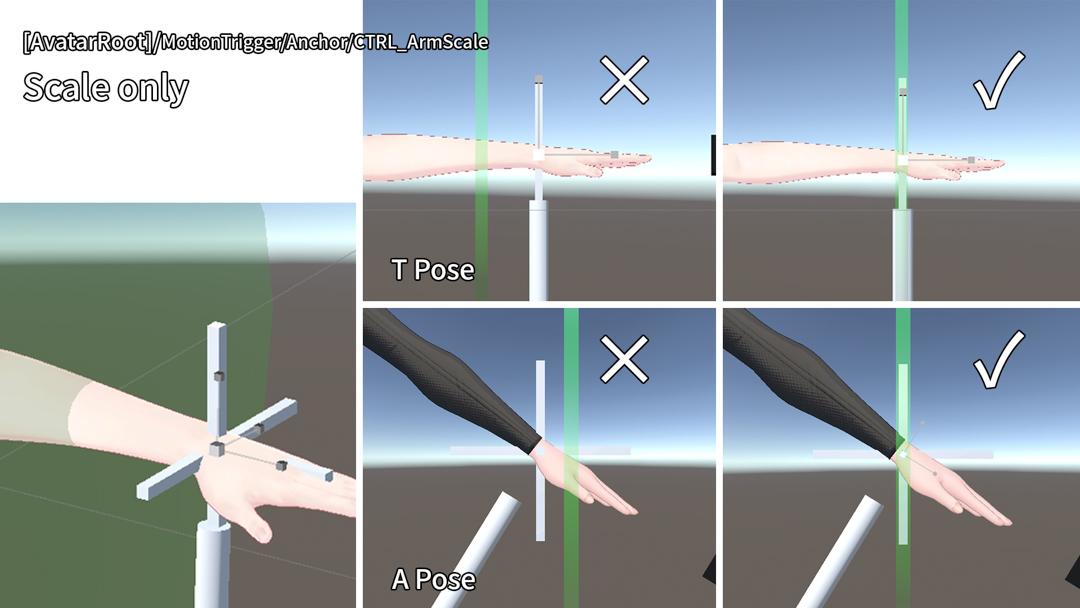
✓: correct ×: incorrect
Set the wrist angle
- Wrist angles differ from avatar to avatar; fit the mechanism to yours. Adjust the rotation of MotionTrigger/Anchor/Hand_R/CTRL_Hand_R.
- VR169 currently needs no setting on the left-hand side.
- Rotate it so that the black cube sits at the fingertips.
- Rotate it so that the white cylinder extends roughly in the direction the palm faces. On most avatars, in both T-pose and A-pose, it will point more or less straight down when viewed from the side.
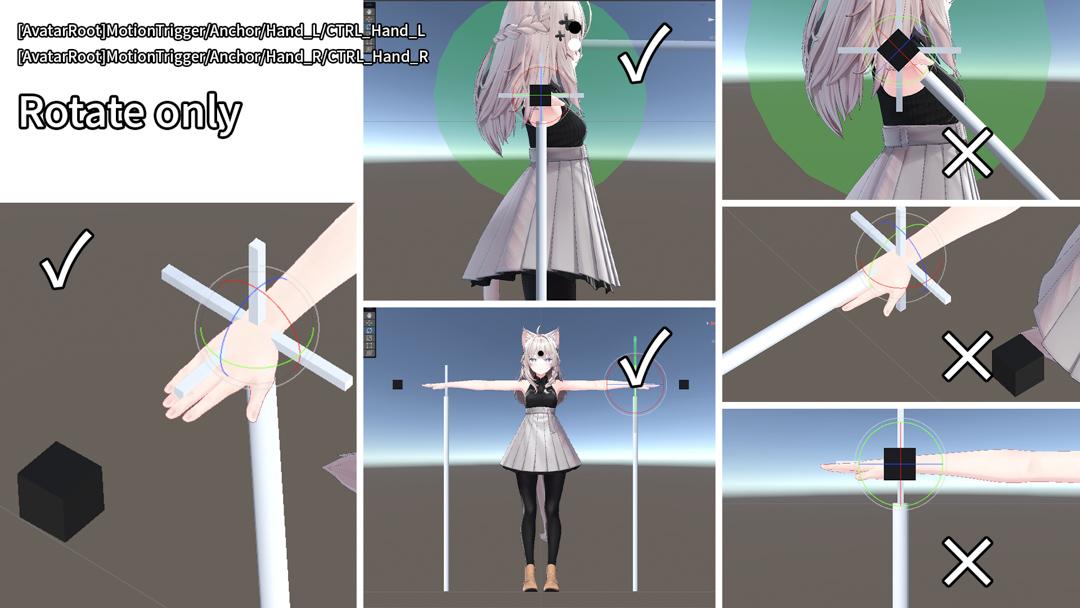
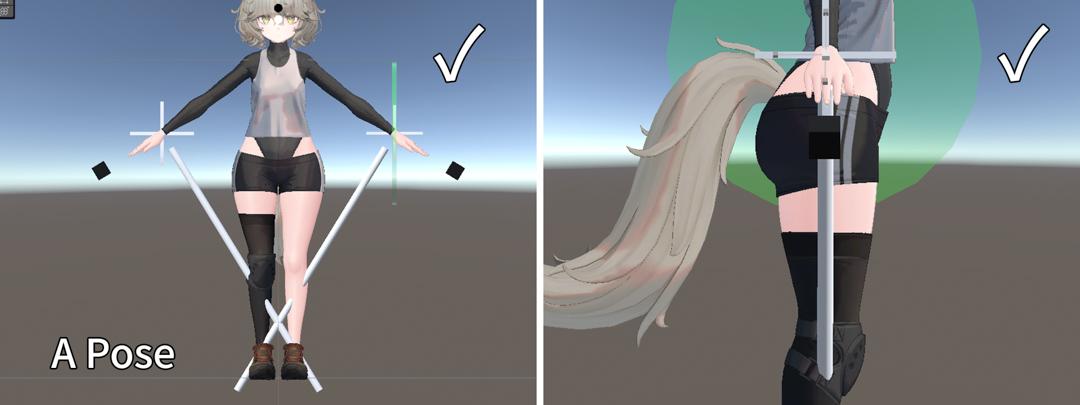
✓: correct ×: incorrect
Set the viewpoint position
- Roughly specify the viewpoint position, for the mechanisms that use gaze. Adjust the position and rotation of MotionTrigger/Anchor/Head/CTRL_ViewPoint.
- Place the white sphere at approximately the same position as the avatar's viewpoint.
- Adjust the rotation so that the black sphere is above the white sphere and the transparent cylinder extends in front of the avatar. This is often unnecessary.
- Viewed from the side, adjust the rotation so that the transparent cylinder is roughly horizontal.
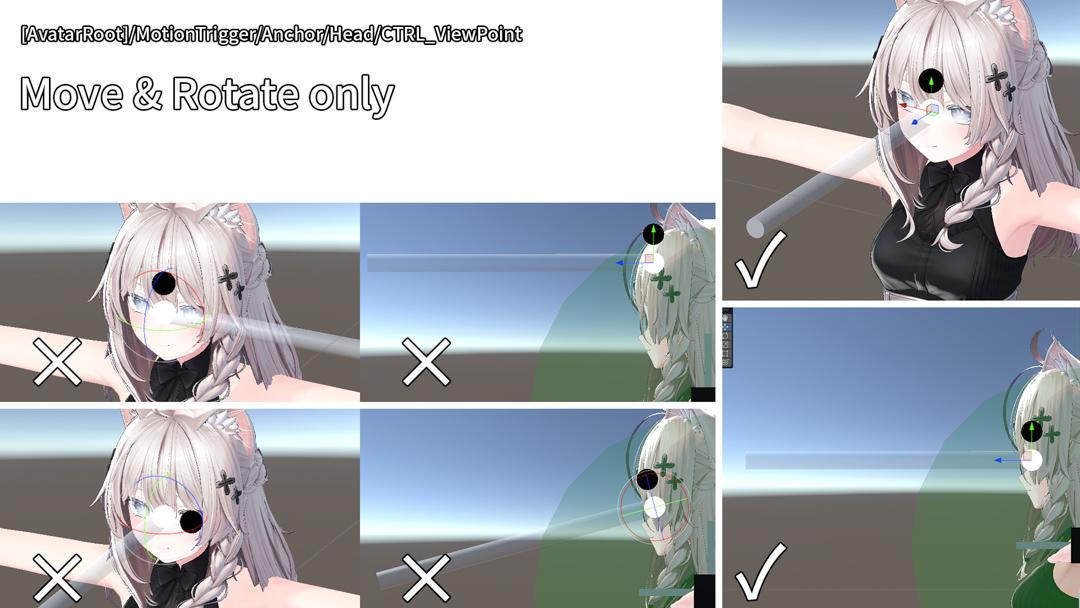
✓: correct ×: incorrect
Disable the setup objects
Uncheck MotionTrigger/Guide to disable it.
Installing VR169 and VirtualLens2
Some adjustments are almost the same as for MotionTrigger. As with MotionTrigger, an update to simplify this is planned.
Place VR169 and VirtualLens2 on the avatar
- Right-click the avatar's root object.
- Choose VirtualLens2 / Non-Destructive Setup.
- Set the "VirtualLens2 Setup (Non-Destructive)" dialog as below and click Apply.
| Item | Value |
|---|---|
| Target Hand | Right |
| Use Custom Model | enabled |
| Custom Model Prefab | Assets/SangouStudio/CameraController/VR169/Prefab/VR169_VL2.prefab |
Specify the camera object [important]
On the VirtualLens Settings component of the generated VirtualLens2 object, set Camera Object / Root Object to VirtualLens2/VR169_VL2/Root in the Hierarchy.

Adjust the camera position and scale
Select VirtualLens2/VR169_VL2 and move it so that the avatar appears to hold the camera in its hand. Adjust the scale as well. It appears a little away from the avatar. If the camera's angle is off relative to the hand or arm, the white cross on the camera-hand side can be a useful reference.
| Avatar height | Suggested scale |
|---|---|
| about 170 cm | about 1.3× |
| about 140 cm | about 1.0–1.1× |
| about 80 cm | below about 0.7× |
A guide to scale adjustment
When the Scale of VirtualLens2 is 1
\* These are only a guide, but a large deviation will interfere with operation.
Tip: giving the camera a slight forward tilt reduces the strain on your wrist when you hold it up inside VRChat.
Set the reference direction
Adjust the rotation of VirtualLens2/VR169_VL2/Anchor/Hips/CTRL_Origin. Using the image below, check that the transparent cylinder and the gizmo shown near the hips are in the correct state. If they are not, rotate it until they are. Note: most avatars do not need this adjustment, but please check to be sure.
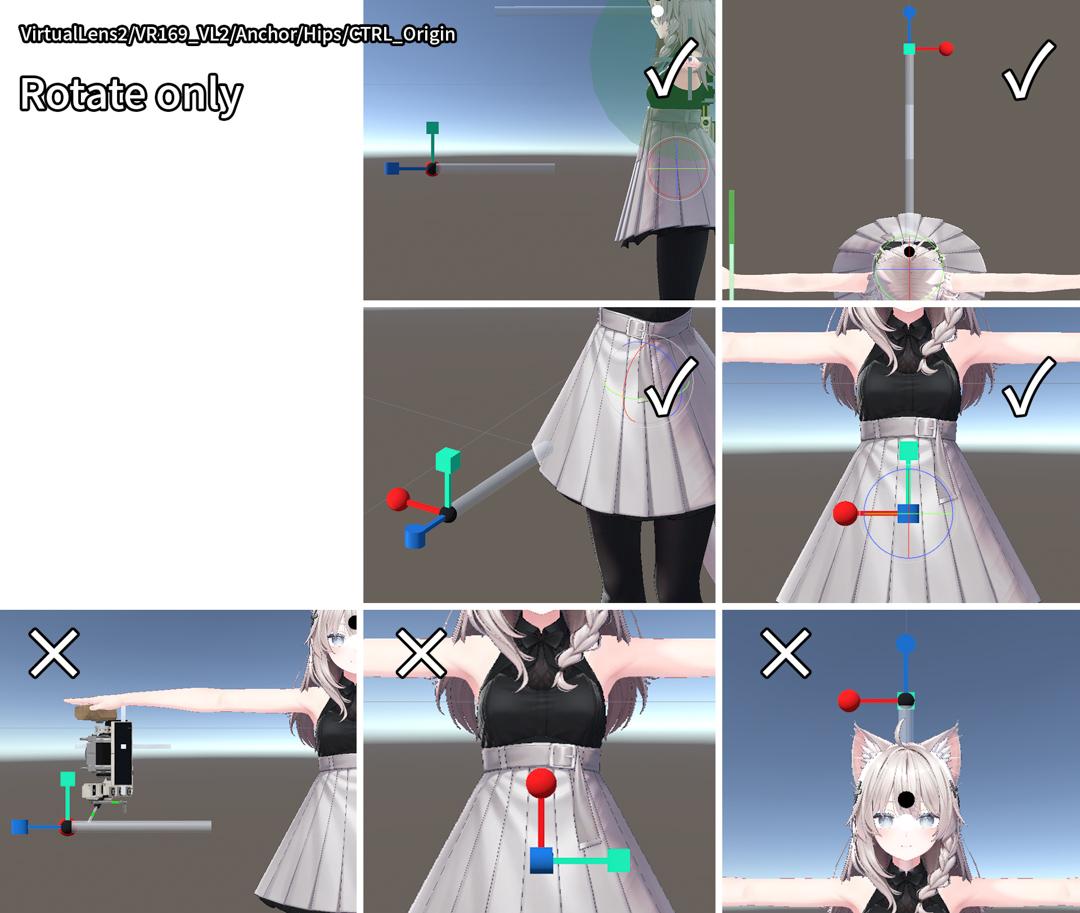
✓: correct ×: incorrect
Set the arm length
Adjust the scale of VirtualLens2/VR169_VL2/Anchor/CTRL_ArmScale. Change the scale uniformly on X, Y and Z, and bring the green translucent object roughly over the centre of the white cross at the left wrist. This is the same operation as for MotionTrigger.
Set the fingertip position
Adjust the position and rotation of VirtualLens2/VR169_VL2/Anchor/IndexDista_L/CTRL_senderFinger.
- Rotate it so that the orange cube points at the tip of the index finger.
- Move the white sphere to a position where it just barely touches the index finger.
- The blue translucent capsule is the switch's detection area. Fine-tune its position and rotation to taste, to suit nail length and so on.
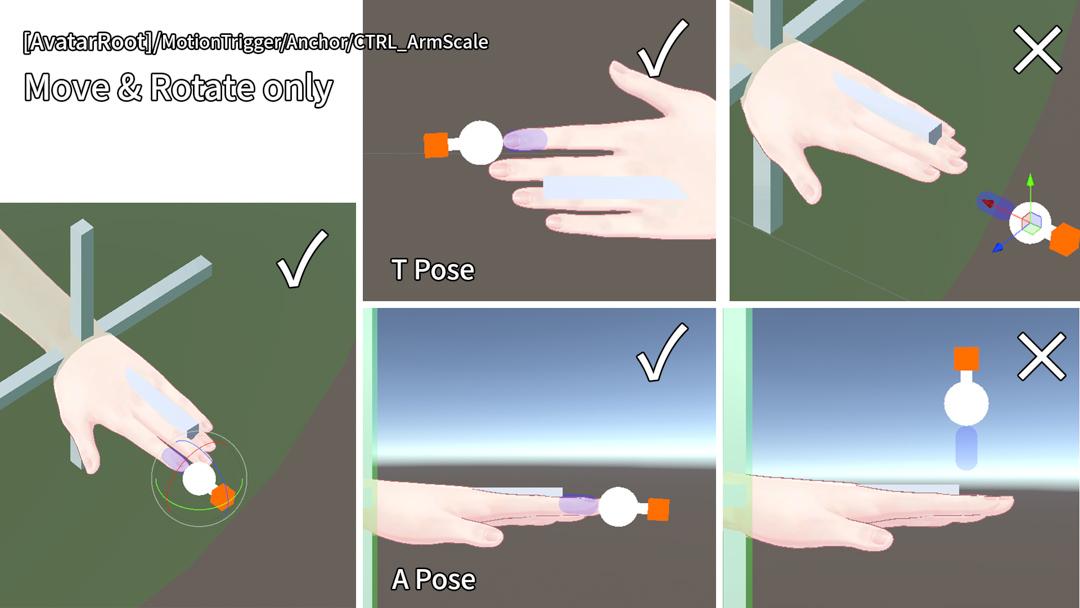
✓: correct ×: incorrect
Set the viewpoint position
Adjust the position and rotation of VirtualLens2/VR169_VL2/Anchor/Head/CTRL_ViewPoint.
- Place the white sphere at approximately the same position as the avatar's viewpoint.
- Adjust the rotation so that the black sphere is above the white sphere and the transparent cylinder extends in front of the avatar. This is often unnecessary.
- Viewed from the side, adjust the rotation so that the transparent cylinder is roughly horizontal.
- This is the same operation as for MotionTrigger.
Disable the VR169 setup objects
Uncheck VirtualLens2/VR169_VL2/Guide to disable it.
Set the VR169 material
You can change VR169's material by changing the material on VirtualLens2/VR169_VL2/Model/VR169/F_Camera. The materials are in Assets/SangouStudio/CameraController/VR169/Material.
- Basic_L: a material using lilToon.
- Basic_P: a Poiyomi Toon Shader material, but set up on the assumption that it is used together with lilToon. Now that lilToon is supported, a future update will tidy this up.
- Custom: a material using Poiyomi Toon Shader. It is set up to prioritise blending into worlds whose light and reflections are well tuned, and it is strongly affected by the world. If you use the Poiyomi Toon Shader edition of this shop's "Smooth Matte Material Set", this is the one to choose.
Disable the VR169 3D model
Uncheck VirtualLens2/VR169_VL2/Model to disable it.
Complete the remaining VirtualLens2 settings
Configure the "VirtualLens Settings" component on the generated "VirtualLens2" object to taste.
For Focal Length, we suggest a Min of 12 mm or more and a Max of 300 mm or less.
For Peaking we suggest None, because there is a function that enables it automatically when you grip the aperture lever (see "Levers — operation and functions" on the Operating VR169 page). The top two QuickCall slots can each be called up by a lever operation (see the same section).
Remote Only Mode is outside the tested configuration.
Test the avatar
Test-build the avatar and check that it works before you upload it.